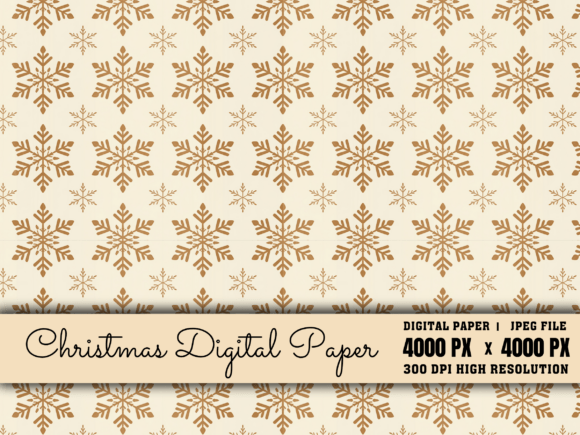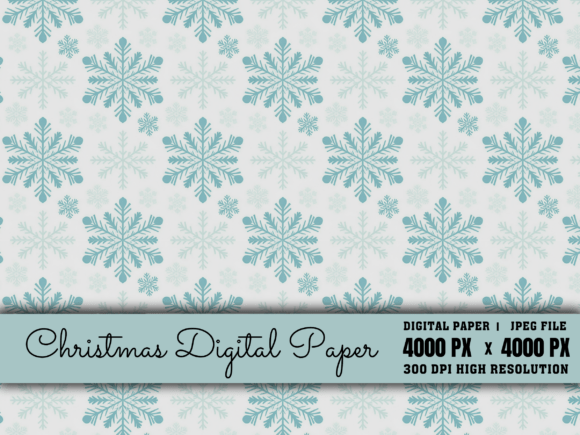
Christmas Digital Paper
Christmas Digital Paper is more than festive decoration—it’s a versatile, high-resolution design asset built for real creative work. At its core, it’s a downloadable JPG file (4000 x 4000 px, 300 DPI) featuring rich, non-seamless background designs—think hand-painted holly, textured kraft paper with gold foil accents, vintage ornaments on linen, or modern minimalist snowflakes on deep navy. Unlike tiled patterns, these backgrounds offer intentional visual weight and natural variation across the canvas, making them ideal for projects where authenticity and detail matter.
Why Resolution and Format Matter
The 4000 x 4000 px size at 300 DPI isn’t just about “high quality”—it’s functional precision. That resolution ensures crisp output whether you’re printing planner stickers at 1” scale or scaling a background to fill an 11” x 14” invitation. JPG format keeps files lightweight and universally compatible: open in Canva, Photoshop, Affinity Designer, Cricut Design Space, or even PowerPoint without conversion hassles. And because it’s non-seamless, each background feels like a curated art piece—not a repeating loop—giving printed crafts and digital layouts organic depth.
Creative Uses That Go Beyond the Obvious
Scrapbookers use Christmas Digital Paper to build layered, tactile-feeling pages—overlaying journaling cards or photo mats with subtle texture underneath. But its value extends further:
- Sublimation projects: Print onto polyester fabric, ceramic mugs, or metal ornaments—the high DPI preserves fine details like delicate script or gradient shadows during heat transfer.
- Digital backgrounds: Drop into Zoom or Google Meet as a branded holiday backdrop, or use in Canva presentations for seasonal client updates or school newsletters.
- Fabric & textile design: Scale sections to repeat intentionally (or not at all) for custom quilting panels, tote bag linings, or holiday apron prints—no tile artifacts to disrupt flow.
- Planner stickers & printable kits: Cut precise die-cut shapes using your Cricut or Silhouette, then layer over the paper for dimensional contrast—especially effective with matte vs. glossy finishes.
Tailoring for Different Audiences and Goals
A small business owner launching a holiday product line might use one background as the base for a cohesive social media campaign: same paper appears behind flat-lay product photos on Instagram, becomes the header in an email newsletter, and repeats (cropped differently) on printable gift tags. Consistency builds recognition—without monotony—because the non-seamless nature means no two uses look identical.
Educators preparing classroom materials can print full-sheet backgrounds for holiday writing prompts (“Describe what lives behind this frosty window”) or use cropped sections as borders for student certificates. The commercial-use license means they can share those resources in paid teacher marketplaces—or use them in school fundraising flyers—without legal hesitation.
Freelance designers building brand kits for clients often start with a core set of Christmas Digital Paper to establish seasonal tone. Pair a warm, rustic paper with serif typography for a bakery’s holiday menu; contrast a sleek metallic paper with bold sans-serif for a tech startup’s year-end report cover. It’s not about forcing “Christmas”—it’s about anchoring messaging in visual intention.
Staying Organized and Original
When working with multiple backgrounds, name files descriptively: “xmas-paper-holly-cream-4000x4000.jpg” instead of “IMG_1234.jpg”. This saves time when revisiting assets mid-project. For originality, avoid overusing default centering—try cropping tightly on a single motif (like one oversized pinecone), rotating the canvas slightly for dynamism, or blending two papers using layer opacity in editing software to create custom hybrids.
If designing for print, always check color mode: these files are RGB for screen use but convert cleanly to CMYK in professional print prep. For sublimation, test a small swatch first—some reds or metallics shift subtly under heat, and seeing that early avoids reprints.
Practical Tips for Getting Started
You don’t need advanced software to begin. In Canva:
- Upload the JPG to your brand kit or uploads folder.
- Drag it onto a blank canvas sized for your project (e.g., 5” x 7” for invitations).
- Add text or graphics on top—use “transparent background” for PNG elements so the paper shows through.
- Export as PDF for print or PNG for web—both retain full resolution.
For craft cutting machines, import into Cricut Design Space, ungroup any pre-made layers (if included), then resize your cut lines to fit within the 4000 px boundaries—leaving at least 100 px margin prevents edge clipping.
What Makes This Useful—Not Just Pretty
Time is the real currency here. Instead of sourcing, editing, and licensing separate textures and patterns—or worse, settling for low-res free downloads—you get production-ready assets instantly. No waiting for shipping. No pixelated blowups. No usage ambiguity. The commercial license covers both personal exploration and client deliverables—from Etsy sticker shops to boutique branding packages.
And because these aren’t mass-produced seamless tiles, they invite thoughtful application. A designer might use the same paper three ways in one project: full-bleed background for a card, zoomed-in section as a watermark overlay on a photo, and a tiny corner crop as a bullet point icon in a checklist. That flexibility supports intentionality—not just decoration.
Whether you're prototyping a new holiday product line, prepping classroom resources before break, or building a cohesive content calendar for Q4, Christmas Digital Paper serves as quiet infrastructure—reliable, adaptable, and ready when inspiration meets deadline.